Counter Staff Guide
For the counter and kitchen: new order alert, accept, prepare, deliver, counter orders, printing. Use the Café Staff app on the counter phone, or the Staff Panel at https://cafe.sharenow.live/login — both work the same way.
1Sign in and Home
- Open the app (or the website) and sign in with the username and password the owner gave you.
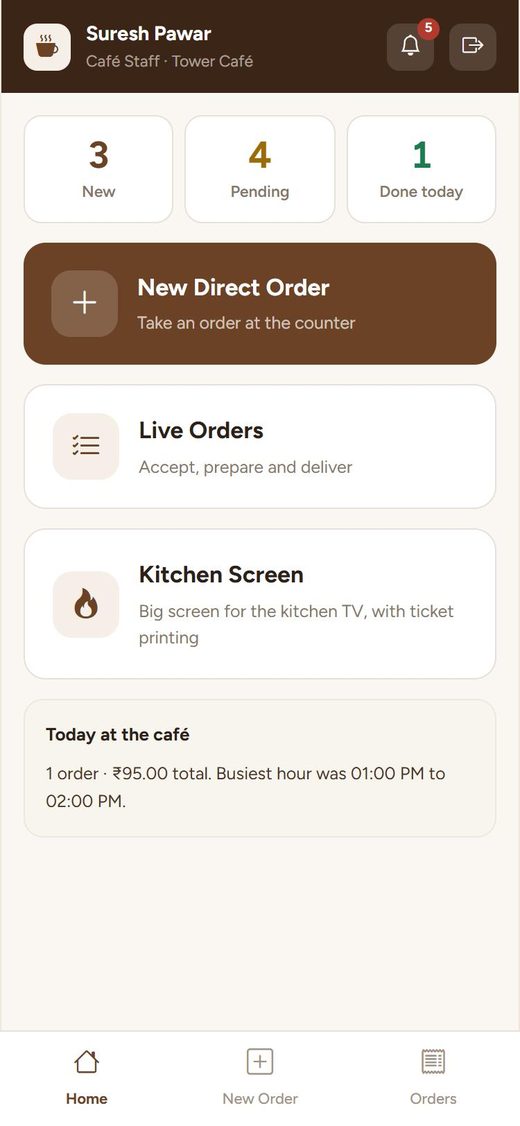
- Home shows New (waiting to accept), Pending (accepted or preparing) and Done today.
- Big buttons: New Direct Order (counter order), Live Orders, Kitchen Screen.
2A new order comes
When an office orders, the phone rings a bell and vibrates, and a full-screen alert shows the office, items, note and total.
- Read the items and the note (e.g. "less sugar", "send to 4th floor").
- Tap Accept Order — the office sees "Accepted". Or Later to open it from the Orders tab.
3Accept → Prepare → Deliver
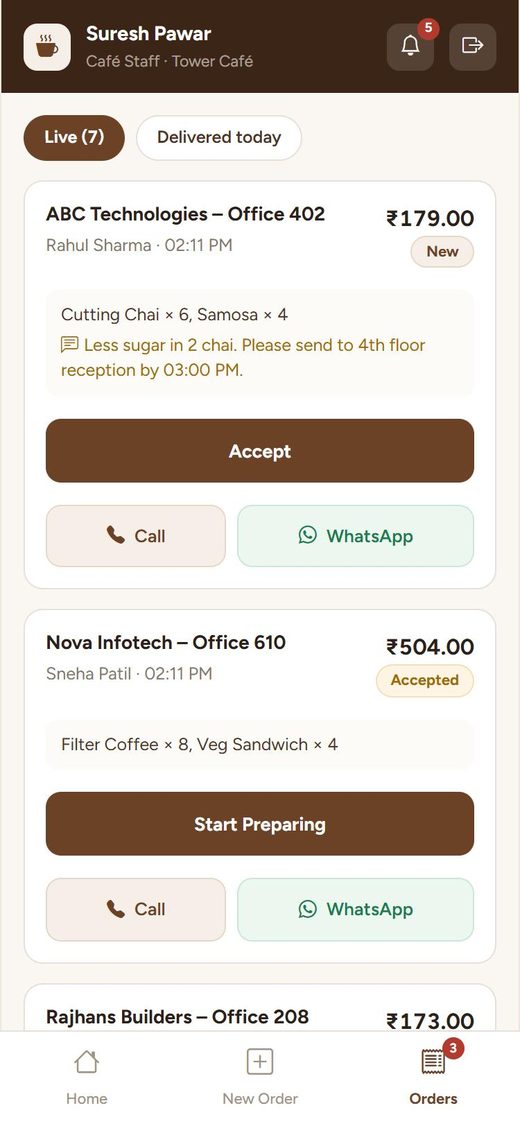
Orders tab shows live orders, oldest first. Each card has one big button for the next step:
- Accept → Start Preparing → Mark Delivered.
- In the app you can also swipe the card to the right to move it ahead.
- Call or WhatsApp the office from the card if anything is not clear.
- Delivered today tab: everything you delivered today.
Wrong order? Open it → menu → Cancel → reason (only if you have permission). The amount goes back to the office.
4Order taken at the counter (Direct Order)
- New Order tab.
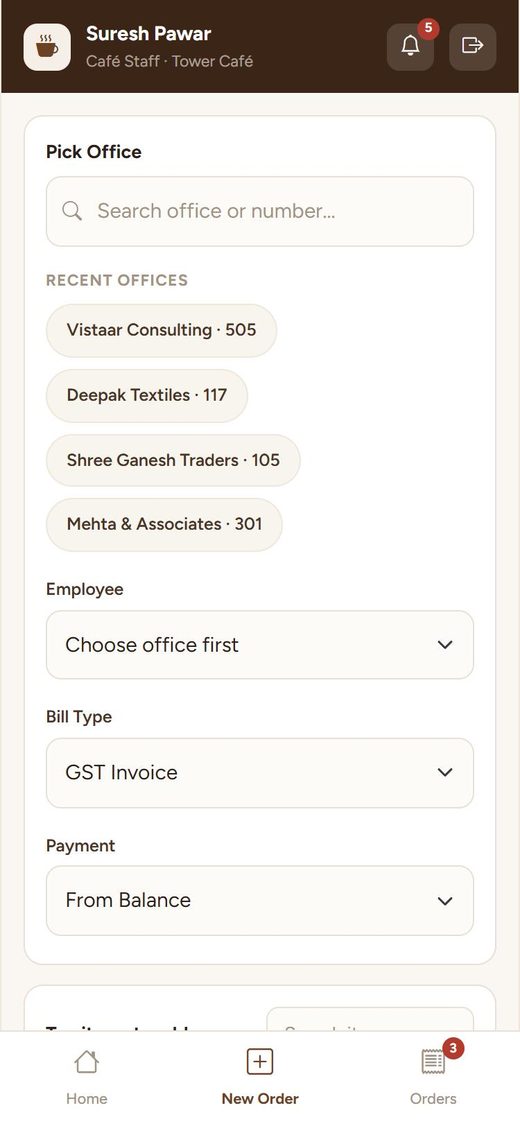
- Search the office (name or number) or tap a recent one. Choose the employee if needed. The balance shows.
- Tap + on the items. The bar at the bottom shows items and total.
- Complete Order → choose GST Invoice or Cash Bill and the payment (From Balance, Udhaar or Paid Now) → confirm.
- Done. You can print the receipt or the kitchen ticket, then Take Next Order.
5Kitchen Screen and printer
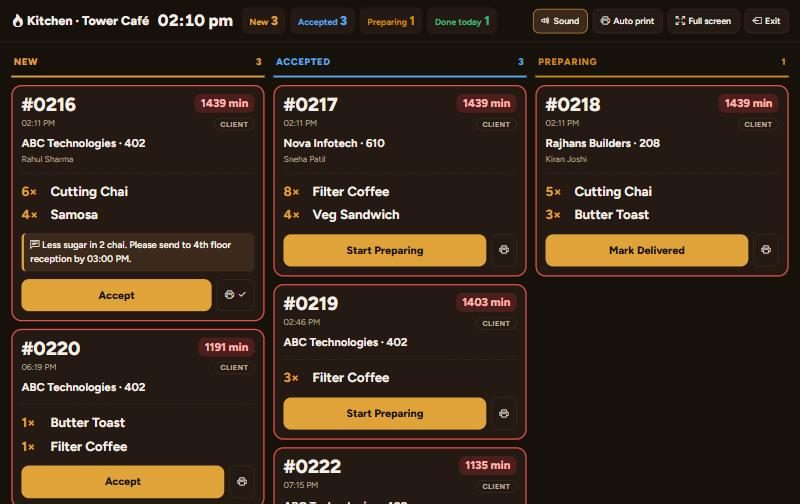
On the kitchen TV / tablet open Kitchen Screen (from Home) and press Full screen. Late orders turn red. Tap the buttons on the cards to move orders; the printer button prints the kitchen ticket. Auto print prints each new order by itself.
In the app: open an order → printer icon → Kitchen ticket, Receipt or Invoice PDF.
6No internet?
In the app you can still take counter orders: they are kept on the phone and sent by themselves when the internet is back (a yellow note on Home shows how many are waiting). The same order is never saved twice.
7Questions
- I can't see some buttons (e.g. Cancel).
- The owner decides what each staff role can do. Ask them.
- I see orders of only one outlet.
- Your login belongs to that outlet. That is correct.
- Forgot password?
- Ask the owner to set a new one (System → Staff → Edit).